Overview
Overview
An Object on Loan (OOL) is any item or system access assigned to an employee that needs to be tracked. These objects may include physical items, such as laptops, phones, and other equipment, as well as virtual items, such as access to online systems.
SAP includes a function for recording and managing these assignments so that university‑owned property and system access can be properly returned or deprovisioned when an employee separates from the university. While some departments maintain their own internal tracking systems, Objects on Loan (OOL) in SAP is the preferred centralized method for tracking employee‑assigned items and access.
Determining What to Record in OOL
An item or access should be recorded in Objects on Loan (OOL) if it is assigned to a specific employee and must be returned, recovered, or manually deprovisioned when that employee changes roles or leaves the university.
Items or access generally belong in OOL when they:
- Are university‑owned and taken off‑site or used outside a shared workspace.
- Have a significant replacement cost or would be difficult to recover.
- Store or provide access to grant data or systems that require manual removal when an employee separates.
- Must be tracked individually due to departmental, compliance, grant, or operational requirements.
NOTE: Access that is automatically deprovisioned at separation, such as standard email, does not need to be recorded in OOL unless it requires manual action or involves elevated permissions. In addition, keys and card access are no longer required to be tracked in OOL. These are managed through UNL PD’s Access Management Program and should only appear in OOL if a department is explicitly instructed to record them.
Departments may choose to track additional items based on their operational needs, but the criteria above should guide consistent OOL use.
Roles and Responsibilities
Roles and Responsibilities
Supervisors
To ensure that OOL records remain accurate, supervisors are responsible for communicating with their Business Center's HR staff regarding items or access assigned to each employee and recovering assigned items and ending systems access when the employees changes positions or separates from the University.
At these key points in employment, a supervisor should take action to ensure their employees' OOL records remain accurate:
- During onboarding, notify Business Center HR of any equipment, system access, or resources assigned to a new employee that should be recorded in OOL.
- During employment, report changes in items issued, items returned, or modifications to access.
- Annually, ensure that employees review and verify their assigned items and report discrepancies.
Managers and supervisors with access to the My Staff role in Firefly can view Objects on Loan data for employees they supervise.
Employees
Employees can view their assigned items and access through the Employee Self-Service (ESS) Firefly portal and are expected to report any inaccuracies, returns, or changes to their supervisor or Business Center HR. They are also responsible for properly caring for and returning university‑owned items and notifying their supervisor when equipment or access is no longer needed.
Business Center HR Staff
Business Center HR staff maintain OOL records in SAP, including adding, updating, and ending entries, as they hold the system access required to make these changes. They support supervisors and employees by ensuring records are complete and accurate and by facilitating annually an OOL review. Business Center HR staff also help coordinate periodic OOL audits, which support the annual reporting process described in the Monitoring & Reporting section.
Administrative Offices
Certain items and system access, such as PCards, specialized financial roles, or other centrally governed permissions, are maintained directly by the administrative office that oversees that program. These OOL entries are intentionally restricted and cannot be added, edited, or removed by supervisors, departments, or Business Center HR staff. For these items, departments should treat the OOL record as view‑only and work directly with the responsible administrative office for any updates, questions, or corrections. This ensures consistent stewardship, accurate compliance tracking, and proper deprovisioning at the time of employee transitions or separation.
Managing Objects on Loan
Access
To maintain Objects on Loan (OOL) records in SAP, a user must hold one of the designated SAP security roles that allow access to Infotype 40 (Objects on Loan) within the PA30 transaction. Only users with the appropriate security can add, update, or end OOL entries.
Available SAP Security Roles
1. HR PDF Update: Grants full update access to PA30 (Maintain HR Master Data), including all applicable infotypes. This role is typically assigned to Business Center HR staff who manage a broad range of employee data.
2. HR_0040_UNL: Provides update access only to Infotype 40 (Objects on Loan) within PA30. This is a more limited role intended for users who solely need OOL update capabilities, such as those within administrative offices.
How to Check Your Access
The simplest way to determine whether you have the required security is to attempt to open Infotype 40 in PA30.
- If you can view and update the infotype, your access is correctly assigned.
- If you are unable to access or edit Infotype 40, you will need additional security.
Requesting Additional SAP Security
If you require access to maintain OOL records, you may request the necessary security roles through the Firefly Security Request process:
- Log in to Firefly.
- Select the Security Request tile on the homepage.
- Complete and submit the form to request the appropriate role.
Requests are routed through the standard approval workflow, and access will be granted once approved.
Create or Edit a Record
Best Practices
- Do not edit or change records that your department did not create.
- Do not delete an object on loan. An End Date should be entered for objects that have been returned by the employee.
Procedure
- Start the transaction using the SAP menu path or transaction code.
- Transaction Code: PA30 - Infotype 40
- Path: Human Resources > Personnel Management > HR Master Data > Maintain > Personal tab > Infotype 40
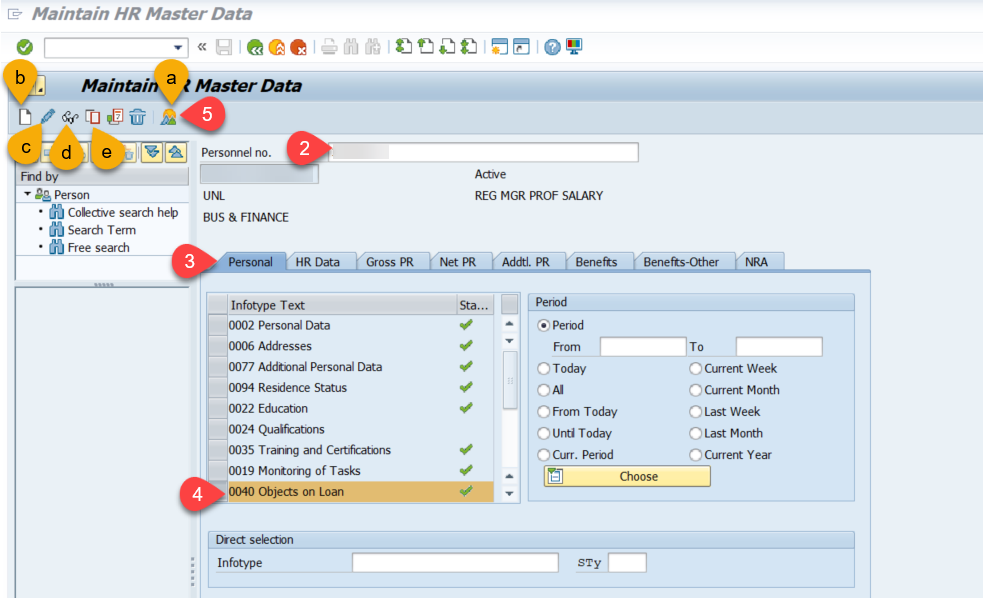
- Enter the employee's personnel number.
- Click the Personal Tab.
- Click in the margin box beside 0040 Objects on Loan.
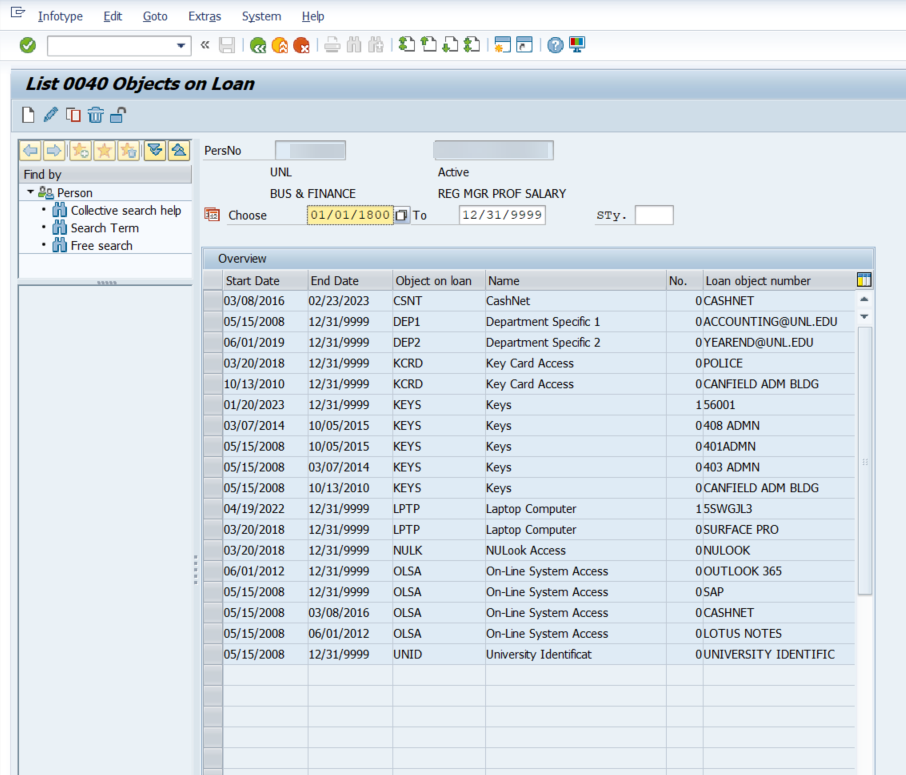
- Click on the Overview (mountains) icon (a) to bring up "List 0040 Objects on Loan" screen, which lists all objects on loan, both currently held by the employee and those held in the past. (The list is sorted alphabetically by Object on loan, not by start or end date. Usually, objects with a 9999 end date are currently on loan to the employee.) After viewing the whole list, you can determine if a new item needs to be added or an existing item needs to be revised and complete the desired action from the "List 0040" screen.
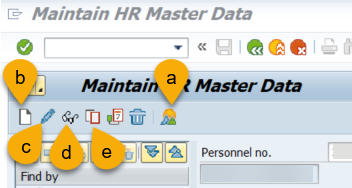
- If you choose to use the icons from the main screen, the function of each icon is:
- Display (labeled "a" on the image below -- mountains) to view all objects on loan (both current and past).
- The Create icon (b) looks like a sheet of paper. Click it to create a new object on loan entry.
- Use the pencil icon (c) to revise a single object on loan. Caution: Clicking this will bring up only the first object on the loaned items list.
- Use the eyeglasses (d) icon to view the first object on loan on the list. (Using Display (a) mountains icon is recommended so all objects on loan are visible).
- Duplicate (e) to use an existing entry as a template for creating a new entry.
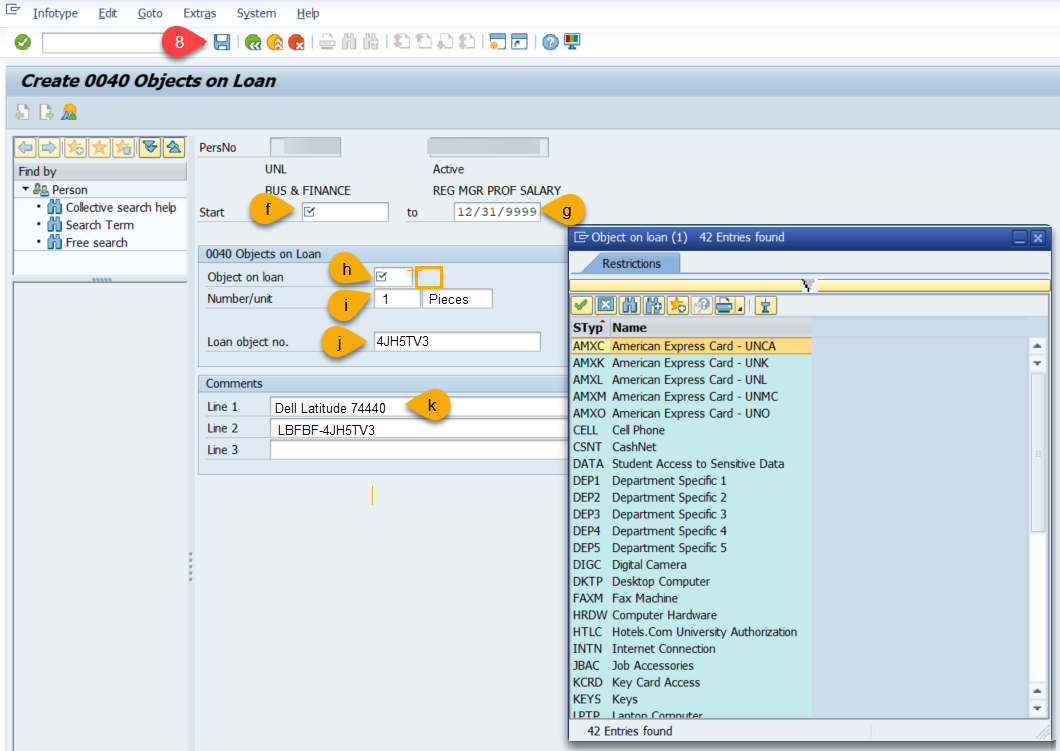
- To add or edit an Object on Loan on the "Create 0040 Objects on Loan" screen, complete/review the following fields:
- Start (h): Date the object was loaned or provisioned to the employee.
- To (g): Date the object will or has been returned. For active employees, the date should be left as 12/31/9999 until the object is returned.
- Object on loan (h): Enter the four-character code for the object on loan. If you don't know the four-character code, click in the empty OOL field (h) and an icon will appear to just to the right of the field. Click on that icon to open a list of all available OOL codes and what they mean.
- Number/unit (i): Enter 1. Even if more than one item of particular objects were loaned to an employee, it is recommended to enter these as separate records.
- Loan object number (j): Enter a short-hand description of the object. Example: Dell Laptop D800.
- Comments (k): Enter other identifying or pertinent information about the object.
- Click Save.
Monitoring & Reporting Overview
Multiple reports are available through the HR Toolbox, Firefly Portal, and SAP, to help Business Centers monitor and maintain accurate OOL records for their departments. Business Centers may use whichever combination of reports and tools best supports their internal processes. However, at a minimum, each Business Center must facilitate an annual review and confirmation from every employee to verify that their OOL assignments are accurate and complete. This annual verification serves as the baseline standard for ensuring OOL records remain current throughout the year.
Business Centers should also incorporate OOL checks into their employee separation and offboarding process. As part of separation process, Business Center HR staff should run the relevant OOL reports (such as the personnel‑specific Turnaround report) to provide supervisors with a complete list of assigned items that must be retrieved or resolved before the employee’s end date. This support ensures supervisors have clear, accurate information and promotes timely return of university‑owned equipment and appropriate removal of access.
A summary of the OOL reporting tools is provided in the table below, followed by more detailed information on the following Instructions tabs.
| Tool | Available Reports | Primary Purpose |
| SAP |
| Most detailed data source; run by org unit, personnel number, or object; supports audits, exports, and deep analysis. |
| Firefly BI Reporting |
| User-friendly, customizable reporting; best for supervisors; supports filtering, sorting, and field customization. |
| HR Toolbox |
| Structured departmental maintenance, annual reviews, and offboarding support. |
Instructions: HR Toolbox Reports
The HR Toolbox provides four structured reports for routine OOL management, helping departments maintain accurate data and support employee onboarding and offboarding.
All reports are located under: HR Toolbox → Data Maintenance → Objects on Loan
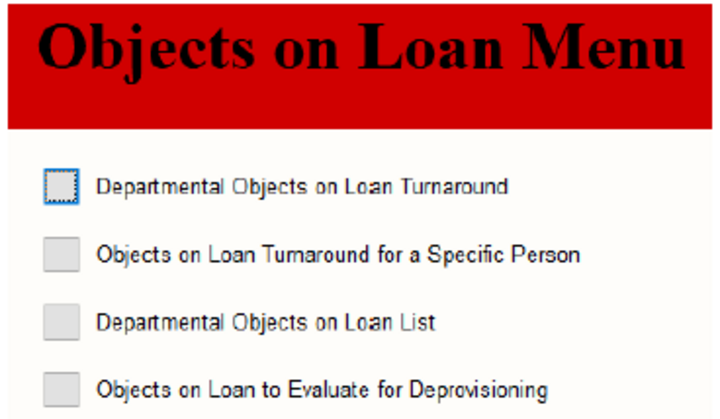
Departmental Objects on Loan Turnaround
The report will generate a printable OOL checklist for each employee within an org unit. This checklist is intended to be provided to each employee so they can review and sign it, confirming the accuracy of their Objects on Loan (OOL). The return date shown at the top of the document is automatically set to two weeks from the date the report is generated.
To run the report, click on Departmental Objects on Loan Turnaround and enter an 8-digit org unit.
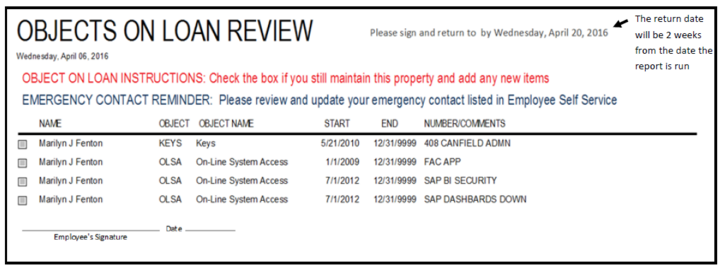
Objects on Loan Turnaround for a Specific Person
This report generates a complete, up‑to‑date list of all Objects on Loan assigned to an individual and is especially useful when offboarding an employee who is leaving a department or being separated from the university. It can be run at any time to support offboarding or routine OOL verification.
To run the report, click on Objects on Loan Turnaround for a Specific Person and enter an 8-digit personnel number.
Department Objects on Loan List
This report generates a complete listing of all employees with OOL within an org unit, in a spreadsheet format. The resulting data can be easily exported into Excel.
To run the report, click on Department Objects on Loan List and enter an 8-digit org unit. To export the data, you can either copy and paste it manually or go to the External Data tab and choose Export to Excel.

Objects on Loan to Evaluate for Deprovisioning
This report generates a list of active Objects on Loan (OOL) for inactive employees. It should be run periodically to ensure that employee offboarding was completed correctly and that all OOL records were properly ended.
To run the report, click on Objects on Loan to Evaluate for Deprovisioning and enter an 8-digit org unit. To export the data, you can either copy and paste it manually or go to the External Data tab and choose Export to Excel.
Instructions: Firefly BI Report
Firefly’s BI Reporting tool provides interactive, user‑friendly views of OOL data using SAP information from the previous day. Reports can be filtered and customized easily for review by supervisors and HR staff.
Objects on Loan (BI Portal Report)
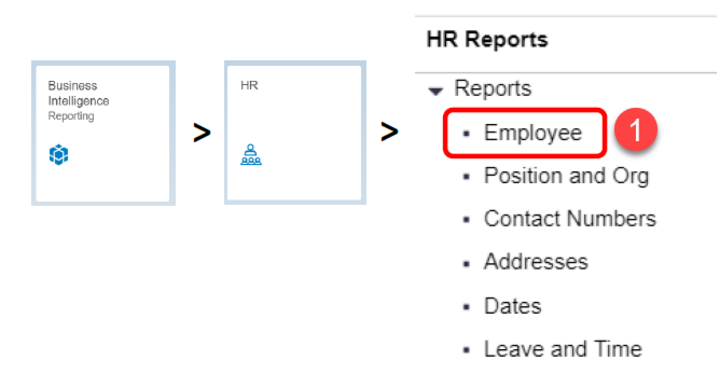
- From Firefly, choose Business Intelligence Reporting > HR > Employee
- On the Variable Entry screen, enter the Org Unit, Employee Group(s), Employee Subgroup(s), and Employment Status of the employees to retrieve data on. Use the reference table shown below to specify criteria for your reports. NOTE: Only specify Employee Subgroup when narrowing down results for a specific subset of people.
| Group | ESG | Status | ||
| Active | Paid | A | 3 | |
| Active | Unpaid (Affiliates/Volunteers) | A | V0 or O0 | 1 or 2 |
| Separated/Withdrawn | S | 0 | ||
| Leave of Absence | L | 1 | ||
| Retired | Not Taking Benefits | S | 0 | |
| Retired | Taking Benefits (Contact Payroll) | R | Q0 | 2 |
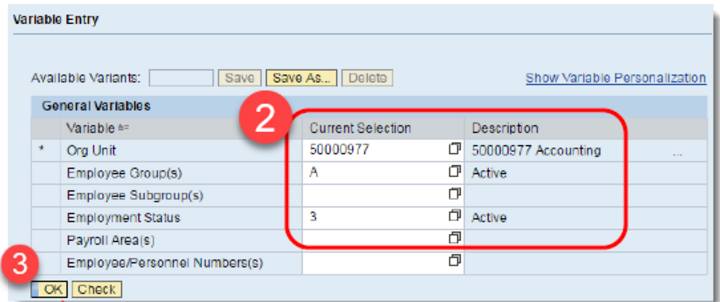
- Click the OK button.
- On the results screen, the Objects on Loan are on the second tab.

Tips and Tricks
- Remove a field: Click and hold on the header of the column that you want to re-move. Drag the header off the table until you see an X, then re-lease.
- Change the Sort: Click and hold on the header of the field you want to sort by. Then drag the field to the far-left column position and let go. The table will sort by data in the first column.
- Filter by Specific Values: Right click on field header > Filter > Select filter value. Highlight your value on the left, click “add,” then “OK.”
- Change Format of a Displayed Cell: Right click on header > Properties > Characteristic. Choose from drop down and click “OK”
- Add Additional Fields: Right click on the Employee# (personnel #) header > Properties > Characteristic. Click the “Attributes“ tab. Highlight the fields on the left, click "add," then "OK".
Content
What is an OOL?
Roles and Responsibilities
Managing Objects on Loan