The Purchasing Card (PCard) program provides a secure and efficient way for departments to make university‑related purchases. While the NU System manages all official PCard policies, rules, and program requirements, the resources on this page offer campus‑specific guidance for PCard reconciliation for cardholders, financial approvers, and reconcilers.
Users should refer to the NU System site for:
- PCard program purpose and benefits
- Purchasing rules and restrictions
- Cardholder responsibilities
- Program compliance expectations
- Training requirements
- FAQs and forms managed at the system level
Process Summary
For every purchase made with a PCard, a digital Transaction Voucher must be completed. This voucher documents the purchase details and business purpose and requires all receipts and supporting documentation to be attached. Once submitted, the digital form is automatically routed for review, approval, reconciliation, and posting into the SAP accounting system.
There are four people or areas involved in this process:
- The Cardholder (or their delegate) completes the PCard Transaction Voucher eForm and submits it to the PCard Reconciler.
- The Business Center PCard Reconciler ensures the form is completed accurately, that required documentation is attached and that the transaction complies with University and PCard policies, rules and guidelines. After the Cost Object Financial Approver has approved the form, the Reconciler completes the SAP transaction record.
- The Cost Object Financial Approver ensures that each transaction is properly charged to a correct cost center. If there are multiple cost objects, there may be more than one cost object approver.
- The PCard Office addresses questions and issues related to PCard compliance.

Instructions
Cardholder
After making a purchase using a PCard, the Cardholder, or delegate acting on behalf of the cardholder, must complete the PCard Transaction Voucher. In most instances, it is best to receive the goods/services before submitting the PCard Transaction Voucher for reconciliation. The PCard Transaction Voucher can be partially completed, saved and finished later. The form will be held in your “My Tasks” queue when you are logged into the Business Central webpage.
- Find the PCard Transaction Voucher eForm on Business Central under Online Forms.
- Complete and submit the form.
How to Complete the Form
Employee Information
- If you are the Cardholder, the form will prefill your name based on your login information.
- If you are not the Cardholder, check the box indicating that you are completing the form for someone else. To find the Cardholder’s name, type their name in the Cardholder name field. It is important to select the person’s name from the dropdown list, which will identify them by their name and NUID.
- Requestor Name is the person who requested the item’s purchase by the Cardholder.
- Reconciler is the person assigned to reconcile PCard purchase for the identified Cardholder. If the Reconciler is not identified, contact pcard@nebraska.edu.
Order Information
- Merchant Name is a required text field to type in the vendor name.
- Order Date is the date the order was placed or date item was purchased.
- Goods or Services Received: Cardholders are encouraged to submit the form after the goods or services are received. You do not need to additionally attach a packing slip as proof of receipt.
- Description of Item is a text field. Enter a description of the item(s).
- Business Purpose: Select from common business purposes or select Other and provide an explanation of the business purpose. If you select Conference Registration, a field will pop up to enter the approved Firefly Trip Number. If a travel authorization is not required (e.g., for in-state travel), enter Not Applicable.
Accounting Information
- University Services Facilities Department: This Yes/No radio button is provided only for Facilities staff use. The default setting is No, which will be appropriate for non-Facilities staff. The selection of Yes by a Facilities staff member will allow the addition of a work order number and will auto route the form for approvals and reconciliation specific to UNL Facilities’ projects. Facilities should also complete the Amount field below.
- Cost Object and Amount: Provide the cost object to which the purchase will be charged and the amount to be charged to that cost object. If the purchase is to be split between cost objects, on separate lines, provide the amount to charge to each cost object.
- General Ledger: G/L If the appropriate G/L is not known by the cardholder, the reconciler may complete this field when reviewing for completeness.
- User Defined: The User Defined field is an open text field available for departmental use to further categorize or group types of expenses. Additional notes fields are available when you select the Yes radio button that is near the Total Amount field.
- Approver Information: Choose the appropriate approver from the dropdown list. Approvers are specific to the cost object entered.
Cardholder Approval - Sign and Submit
- Add Files: Click on the Add Files button to attach receipts and all corresponding documentation.
- Most commonly, you will submit your receipts and documentation in .pdf format, but the following file types are also acceptable: .png , .jpg, .jpeg and .gif. If possible, create one document that includes all documentation and then attach.
- Examples of necessary documentation include: detailed, itemized receipts/invoices; agendas for nonconference events; conference registrations, agenda, details.
- If you are the Cardholder, select the Sign this section button to signify your signature and then click the Submit button to submit the eForm to the Business Center PCard Reconciler.
- If a delegate completes the form, the form will not have a Sign this section field, but after clicking Submit, the form will auto route to the PCardholder to confirm the information entered on the form.
NOTE: If any required fields have not been completed, those fields will highlight yellow and must be completed before submitting.
Reconciler
Automatic workflow is built into the PCard Transaction Voucher eform, therefore, after the cardholder submits the form, the Reconciler will receive an email from “Business Central <no reply@frevvo.com>” indicating the form is waiting for reconciliation.
Review the Transaction Voucher | Resolve PCard Issues | Post Voucher in SAP | Complete SAP Record of Purchase |
Monthly: Send PCard Transaction Log | Change a PCard Reconciler
Review the Transaction Voucher
Review each transaction to determine if each purchase aligns with the PCard policy.
- Ensure that the business purpose is provided and the transaction is for acceptable University business.
- Review the item purchased and what the item is used for (if applicable)
- Refer to UNL’s allowable/prohibited items list. Contact the PCard Office with questions about allowability of specific items
- Determine if sales tax was charged and take appropriate action. The University should not pay sales tax for items received in Nebraska or received in states where the University is tax exempt. Documentation of tax-exempt states is available in Sapphire.
- If sales tax in excess of $20 was charged inappropriately, ask the cardholder to contact the vendor for a sales tax credit.
- Attach any additional documentation from the vendor.
Ensure all documentation is attached
- Review each charge and make sure there is appropriate accompanying receipt/documentation. If documentation is not complete, work with cardholder to obtain additional paperwork.
- Examples of necessary documentation to include detailed, itemized receipts/invoices; agendas for nonconference events; conference registrations, agenda, details; etc.
- NOTE: If the cardholder is not familiar with the vendor or charge, it could be an indication of a fraudulent charge. See below instructions for Resolve PCard Use Issues, under Unauthorized/Fraudulent Use.
- Save each attached receipt/document. After reviewing each receipt or other type of documentation, save it to your Business Center’s record retention folder.
Review cost objects and GLs provided
- Ensure the correct cost objects have been provided; add or correct if needed.
- Determine correct general ledger account numbers; add or correct if needed.
- NOTE: Each line item of a split funded charge (split between GL codes/funding sources) should include description, amount, and cost object.
Resolve PCard Use Issues
Unauthorized/Fraudulent Use
If you discover charges made to the card that have no documentation from the cardholder, contact the cardholder. If the cardholder indicates that it may be an unauthorized/fraudulent charge, then the cardholder will need to investigate/dispute the charge with the bank. The reconciler should wait for the charge to be credited before reconciling that charge. The reconciler will process the charge and the credit at the same time to ensure that both transactions are posted to the same GL code and cost object.
Personal Use
Using a P Card to make a purchase for personal use is a violation that requires additional action. If a cardholder mistakenly uses their PCard to make a personal purchase, take the following steps:
- Contact the cardholder and ask them to reimburse the University of Nebraska via check.
- Receive the reimbursement check from the cardholder and deposit it via Transact.
- Attach a copy of the Transact deposit information to the PCard reconciliation information.
- Proceed with reconciliation.
Non-Compliance with PCard Policy
If purchase doesn’t align with policy, click the button on the Transaction Voucher eForm indicating a violation of PCard policy and complete a description of the potential violation. The PCard Office will automatically receive a notification of the potential violation for their review and will take action Proceed with reconciliation the purchase has been made and still needs to be posted to SAP.
Post Voucher in SAP
- Post Voucher in SAP. If purchase aligns with policy and has appropriate documentation, proceed to post voucher in SAP.
- Open SAP and go to the transaction code ZPCARD
- Enter transaction details by direct entry or copy/paste the fields from Frevvo to SAP
- Click the Save button on ZPCARD to post transaction. This completes the reconciliation process in SAP.
- Complete the Reconciler Information section of eForm
- Sign the form by clicking on the Sign this section button
- Enter the SAP Doc number in the SAP Doc# field of the eForm
- Approve the eForm. Select the Submit button to submit the eForm to the Cost Object Financial Approver
- Route the transaction voucher to Cost Object Financial Approver for review.
- The eForm provided a list of appropriate Cost Object Financial Approvers, as identified by the SAP Ariba table of approvers. The cardholder selected the approver for each cost object. You will need to verify that the most appropriate Financial Approver has been selected to complete the approval process.
- Wait for Financial Approver(s) to review and approve transaction voucher.
Complete SAP Record of Purchase
When all Cost Object Financial Approvers have reviewed and approved the transaction voucher eForm, the PCard Reconciler will receive an email with the final transaction voucher eForm attached.
- Save the final transaction voucher. Download the transaction voucher eForm as a pdf and save it, so that it is available for upload to SAP.
- Address the changes identified by the Cost Object Approver(s), if needed.
- Upload final documentation in SAP. In SAP, find the related SAP Doc# and attach the pdf of the final transaction voucher, receipts and documentation to the SAP Doc#. This completes the documentation record in SAP.
Monthly: Send PCard Transaction Log
On a monthly basis, Business Center P Card Reconciler sends log of all P Card transactions conducted during the prior month to the Business Center PCard Approver.
- Run a list of all reconciled transactions for the previous month. If Business Center chooses, they may run this report more frequently.
a. Open ZPCARD in SAP
b. Set the status as “Posted”
c. Limit the transaction lines to “Department”
d. Enter the date range into the “SAP Posting Date” fields
e. Select the Execute button or click F8
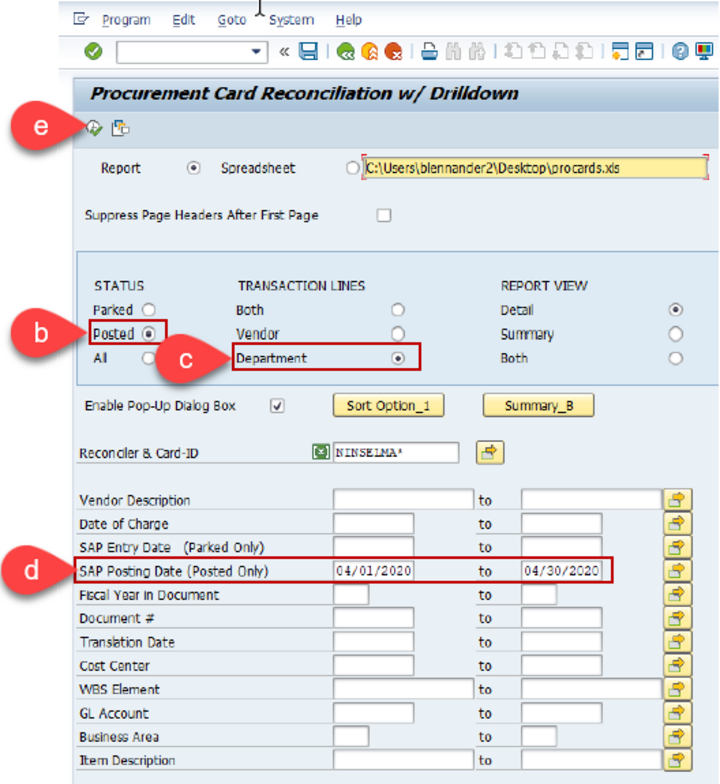
- Print the resulting report as a pdf and save it. Print can be completed by selecting the printer icon or by selecting List then Print.
- Email the pdf file to the Business Center PCard Approver for review

Change a PCard Reconciler
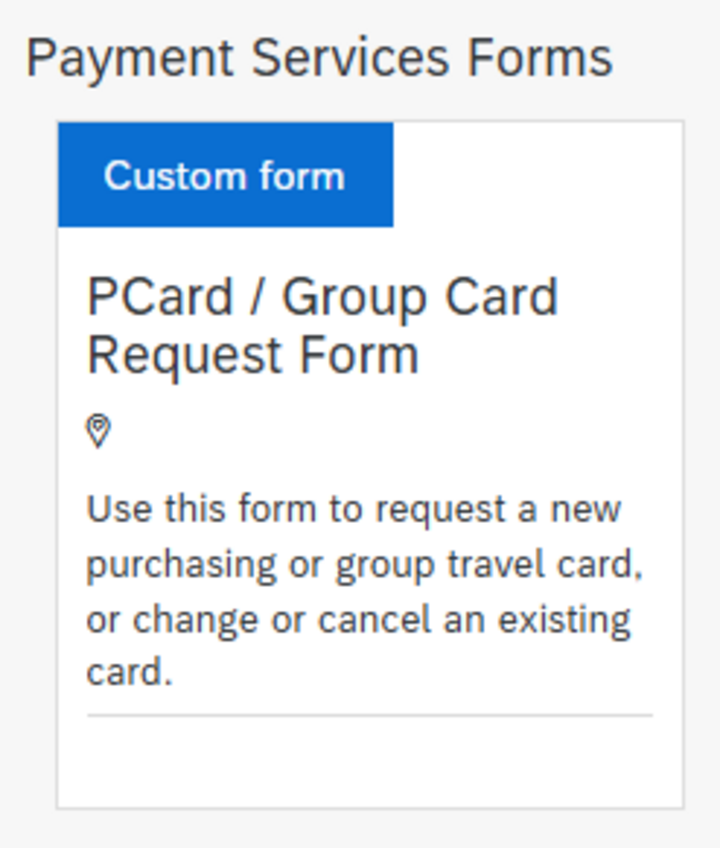
If a PCard reconciler needs to be updated or changed, please submit a PCard/Group Card Request form in SAP Ariba. The form can be accessed through Firefly, and submitting this request will ensure the reconciler information is updated on the back end.
Path: Firefly > SAP Ariba > Procurement & Payment Forms > PCard / Group Card Request Form
Financial Approver
Automatic workflow is built into the PCard Transaction Voucher eform, therefore, after the Reconciler completes their review, the Financial Approver will receive an email from “Business Central <no reply@frevvo.com>” indicating the form is waiting for their approval.
Review and Approve Transaction Voucher eForm
- Verify expenses and amounts for cost object(s).
- Verify each expense and amount identified for each cost object
- For each line, select either Approved or Changes Needed from the Approval dropdown list. If Change Needed is selected, add an explanation of the necessary changes.
- Submit approval and changes. Submit your approval by clicking on the button at the bottom of the form.
- If you are not the final approver, click the Submit to Next Approver button to document your approval and to route the form to the next approver.
- If you are the last approver, click the Submit button
NOTE: The system automatically sends an email to the Reconciler that includes the instructions for changes needed and an attached pdf of the completed form.
Change a PCard Financial Approver
If a PCard financial approver needs to be updated, please email P2P at p2p@nebraska.edu with the request. Include the cost object and the new Approver's name and email address so the update can be completed.